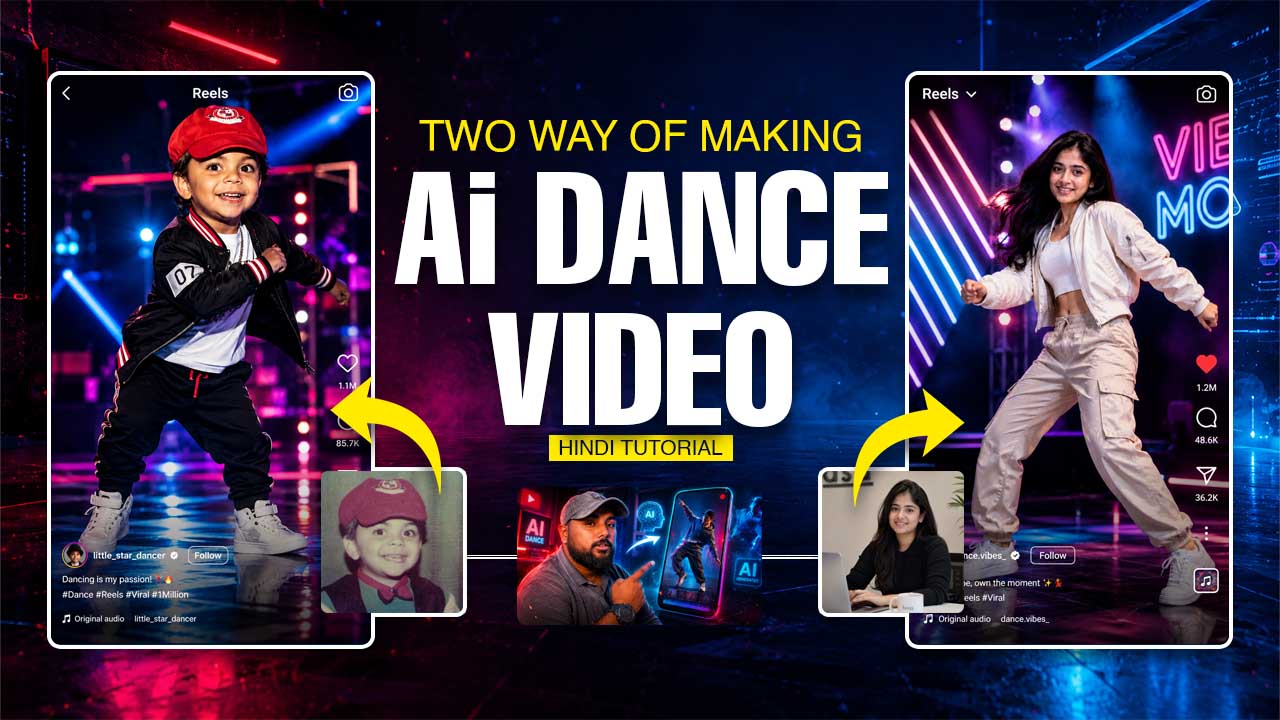
AI Dance Videos are becoming viral on TikTok, Instagram Reels, and YouTube Shorts.
With the help of AI tools like
Kling AI and
OpenArt,
you can create ultra-realistic dancing videos using just a single photo and a powerful prompt.
In this guide, you will learn step-by-step how to:
- Generate the perfect AI image using ChatGPT
- Create realistic dance images in OpenArt
- Animate the image into a dance video using Kling AI
- Export a viral-ready 9:16 video for Reels and Shorts
Step 1: Generate the Perfect AI Prompt Using ChatGPT
The first step is creating a high-quality image prompt.
A good prompt gives better facial details, realistic body movement, cinematic lighting, and viral-style visuals.
You can use the prompts below directly inside ChatGPT or OpenArt.
Prompt for Baby Dance Video
Prompt for Adult Dance Video
Step 2: Generate the AI Dance Image in OpenArt
Now open
OpenArt AI Image Generator.
Steps:
- Login or create an account
- Click on “Create Image”
- Upload your face photo
- Paste the prompt
- Select Aspect Ratio: 9:16
- Select Style: Realistic / Cinematic
- Choose High Quality settings
- Generate multiple versions
- Select the best realistic image
Pro Tips:
- Use front-facing photos
- Use clear HD images
- Avoid blurry selfies
- Keep face fully visible
- Bright lighting works best
Step 3: Upload the Image to Kling AI
After generating the image, open
Kling AI.
Steps:
- Click “AI Video”
- Upload the generated image
- Select “Image to Video”
- Choose Motion Strength: Medium or High
- Select Duration: 5–10 Seconds
- Choose Dynamic Camera Motion
- Add a dance motion prompt
- Click Generate
Dance Motion Prompt Ideas:
- Energetic hip-hop dance
- Smooth TikTok dance movement
- Professional stage performance
- Luxury cinematic dance movement
Kling AI will animate the image into a realistic dance video with cinematic camera movement and realistic motion.
Step 4: Add Music and Effects
After downloading the AI dance video, edit it using apps like:
Add These Effects:
- Trending music
- Motion blur
- Zoom effects
- Beat sync cuts
- Text animations
- Glow effects
Step 5: Export for TikTok, Instagram, and YouTube Shorts
Best Export Settings:
- Resolution: 1080×1920
- Frame Rate: 30 FPS or 60 FPS
- Format: MP4
- Aspect Ratio: 9:16
Upload your final AI dance video to:
Tips to Make Your AI Dance Videos Go Viral
- Use neon lighting prompts
- Add realistic motion blur
- Keep videos short (5–10 sec)
- Use trending audio
- Add cinematic camera movement
- Use expressive dance poses
- Upload consistently
Final Words
Creating AI Dance Videos is now easier than ever with
Kling AI and
OpenArt.
With a powerful prompt, a clean image, and good motion settings, you can create stunning viral-ready dance videos in minutes.
Whether you want baby dance videos, stylish adult dance edits, or cinematic TikTok reels, this workflow can help you generate highly realistic AI content quickly and professionally.